
 Multi-currency support
Leveraged ETFs
Cryptocurrencies
UK Gilts
UK CGT reporting
Equalisation payments
List of shortcut keys
Notes on data storage
Multi-currency support
Leveraged ETFs
Cryptocurrencies
UK Gilts
UK CGT reporting
Equalisation payments
List of shortcut keys
Notes on data storage

Portly was hand-written by humans (me, specifically) with minimal AI input. For the moment, at least, I believe that nothing beats good old-fashioned human craftsmanship !

Getting started
This brief tutorial will walk you through the basics of using Portly, one step at a time.
If you haven't installed Portly yet, please visit the download page. Otherwise, read on...
Step 1 - Creating your first portfolio
Here's how Portly looks when you start it up for the very first time. At the left of the screen (circled) is the 'organiser' panel, which contains a variety of useful links. At the moment, the 'Welcome !' link is selected and we're viewing a basic introductory message for new users :
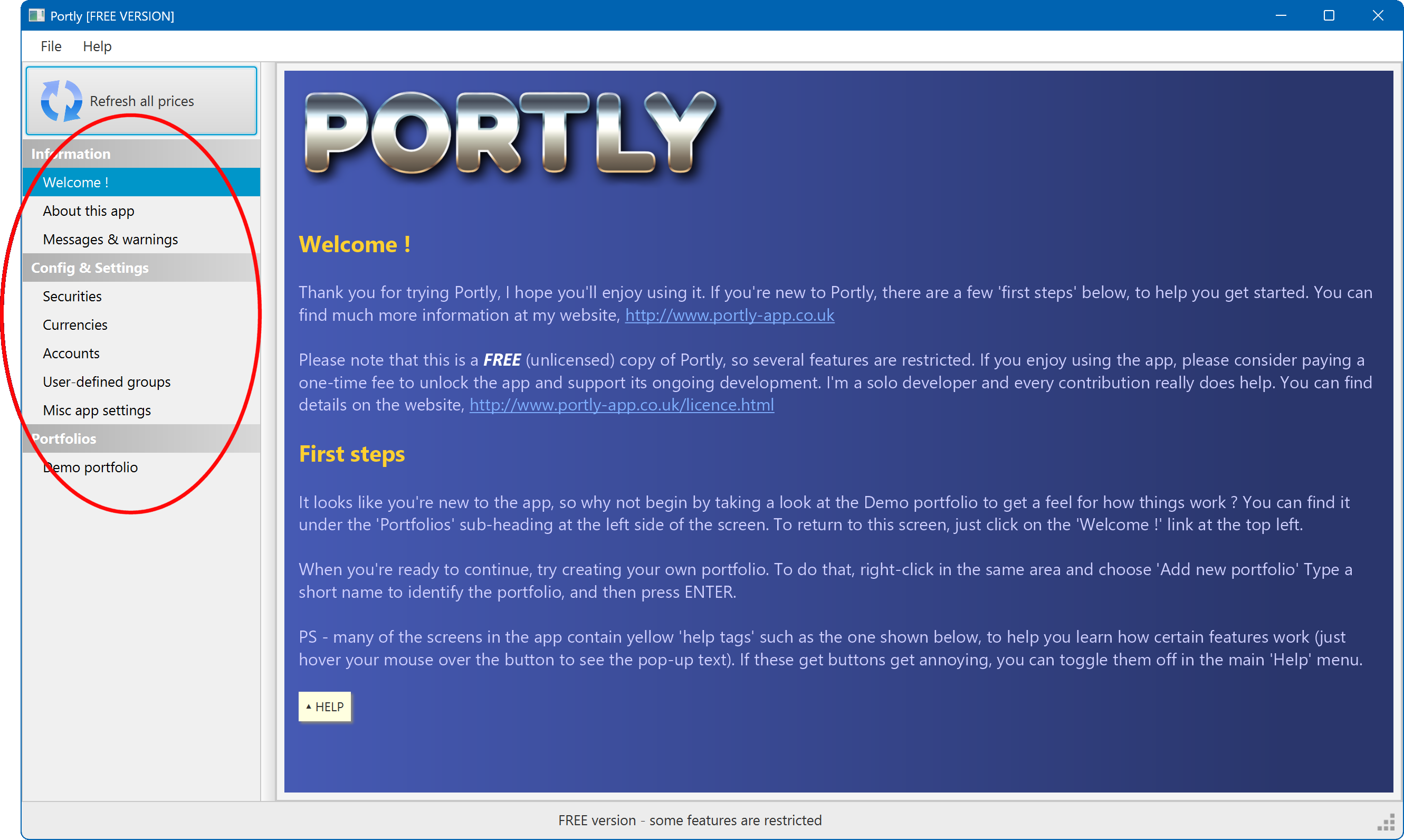
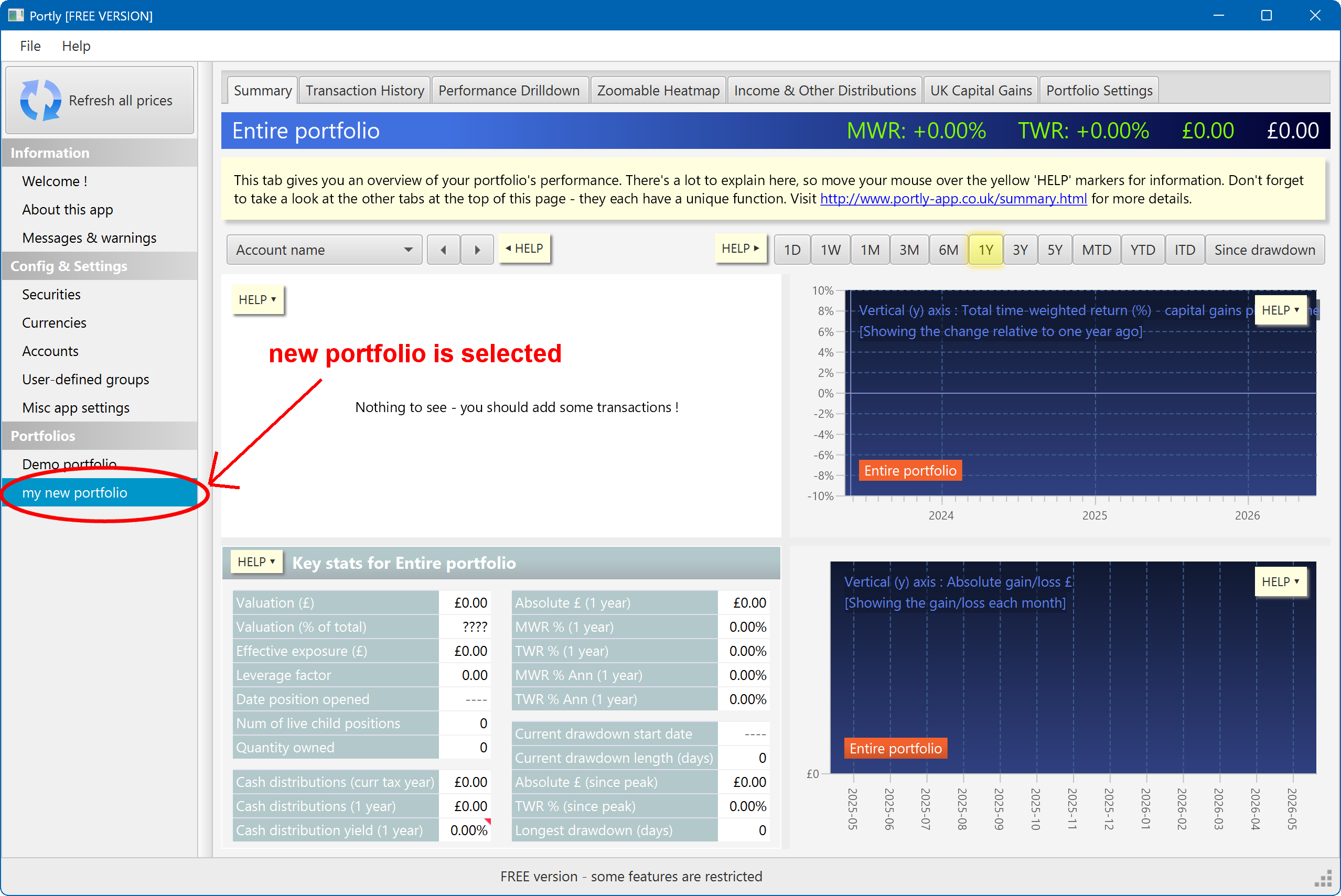
Let's begin by creating a new portfolio. Just right-click anywhere in the organiser panel and select Add new portfolio. Then type a short name for the portfolio and press ENTER (you can easily change the name later).
The screen should now look something like this. Portly has selected the new portfolio and is displaying its 'summary page' (more about this later). There's not much to see yet, however, because the portfolio is empty :
Step 2 - Adding cash
Now it's time to start adding some transactions to portfolio. We'll start with a cash deposit (Portly will warn you if you try to buy shares without having enough cash in your account, so let's make sure we add some cash first).
Switch to the Transaction History tab at the top of the screen, then click the Add new... button. You'll be presented with a popup menu, showing all the available transaction types :
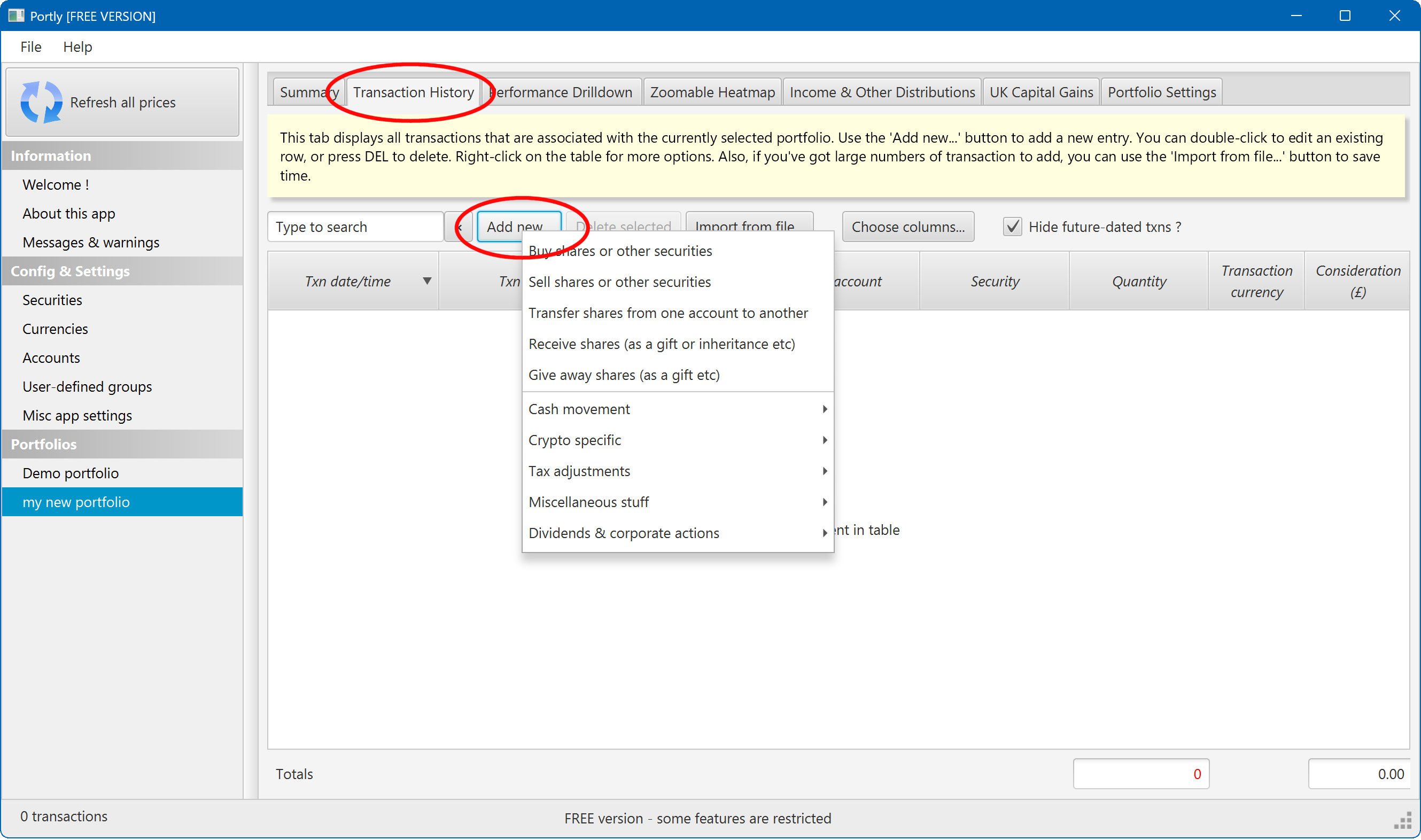
Choose the Cash movement / Deposit cash to an account menu item. You'll see a dialog window that looks like this :
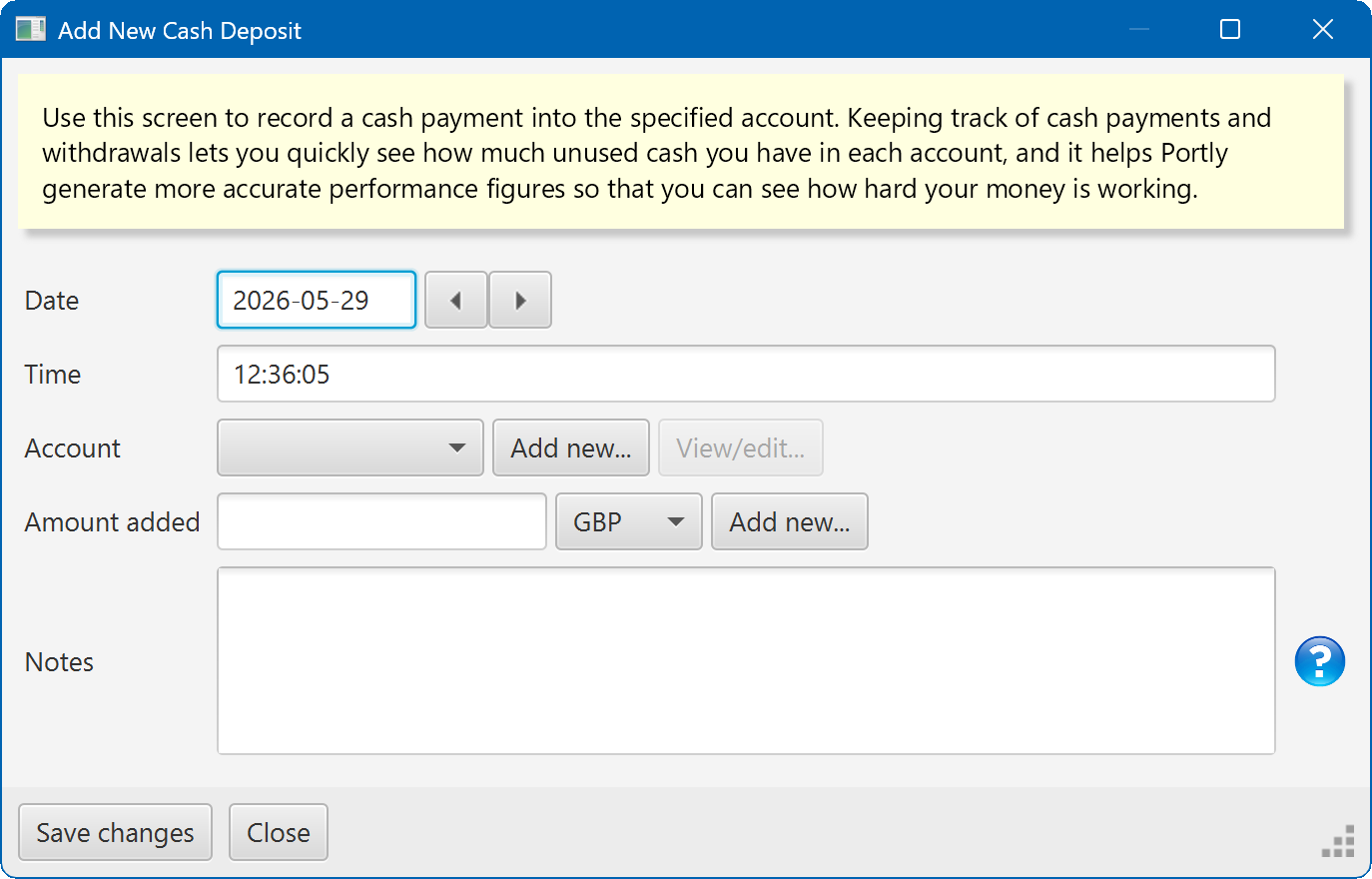
For this tutorial, I'll back-date the deposit date to Jan 6 2025. There are a couple of ways to do this :
For the account name, press the Add new... button to add a new account. You'll see a new dialog.
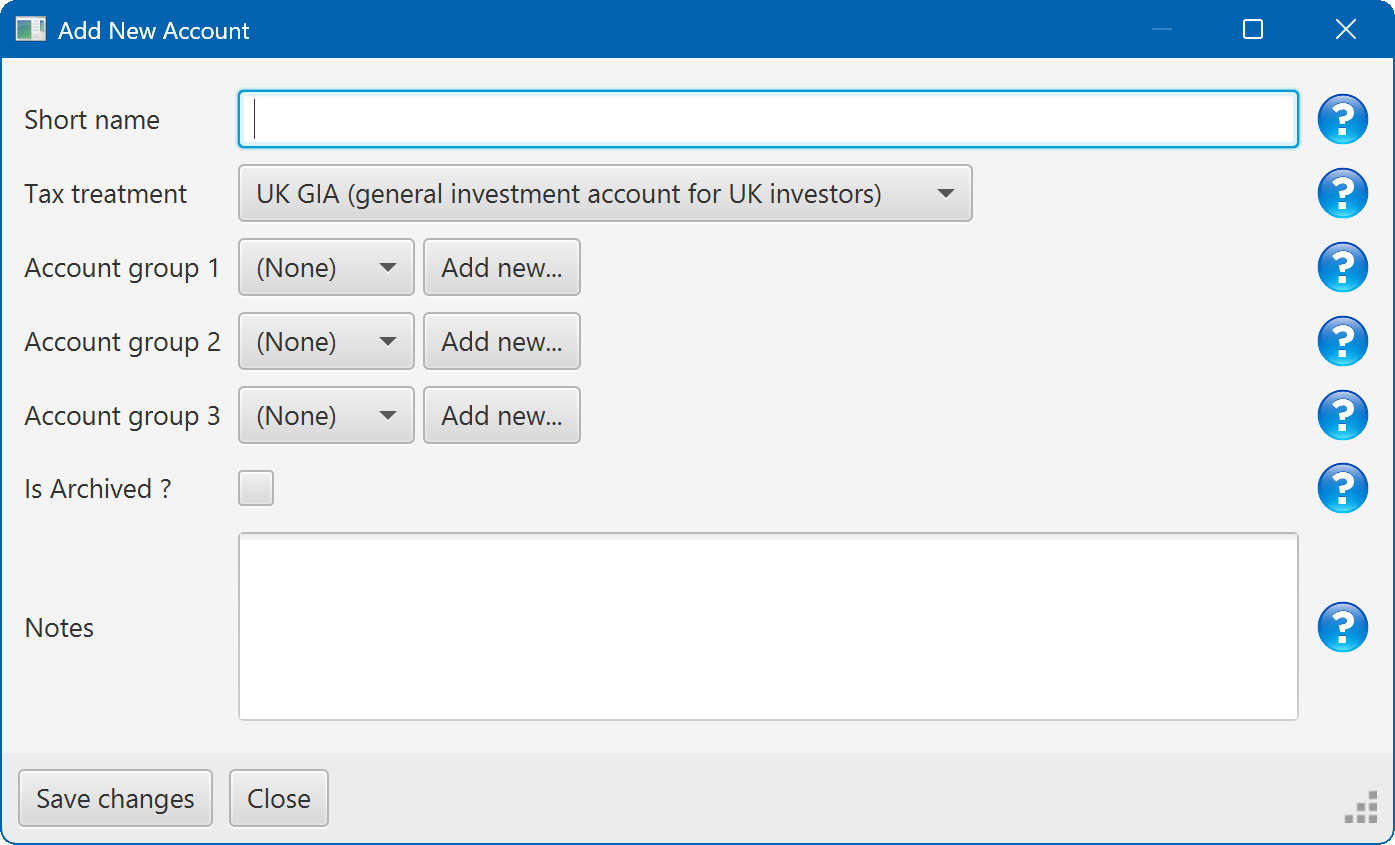
Type a short name for the new account and press Save Changes (you can change this later if you change your mind). You can now continue filling out the details of the cash deposit. For the sake of this example, let's assume that you deposit £5000 ('5000 GBP') to new account. Press Save Changes once you're ready. If everything went OK, you screen should look something like this :
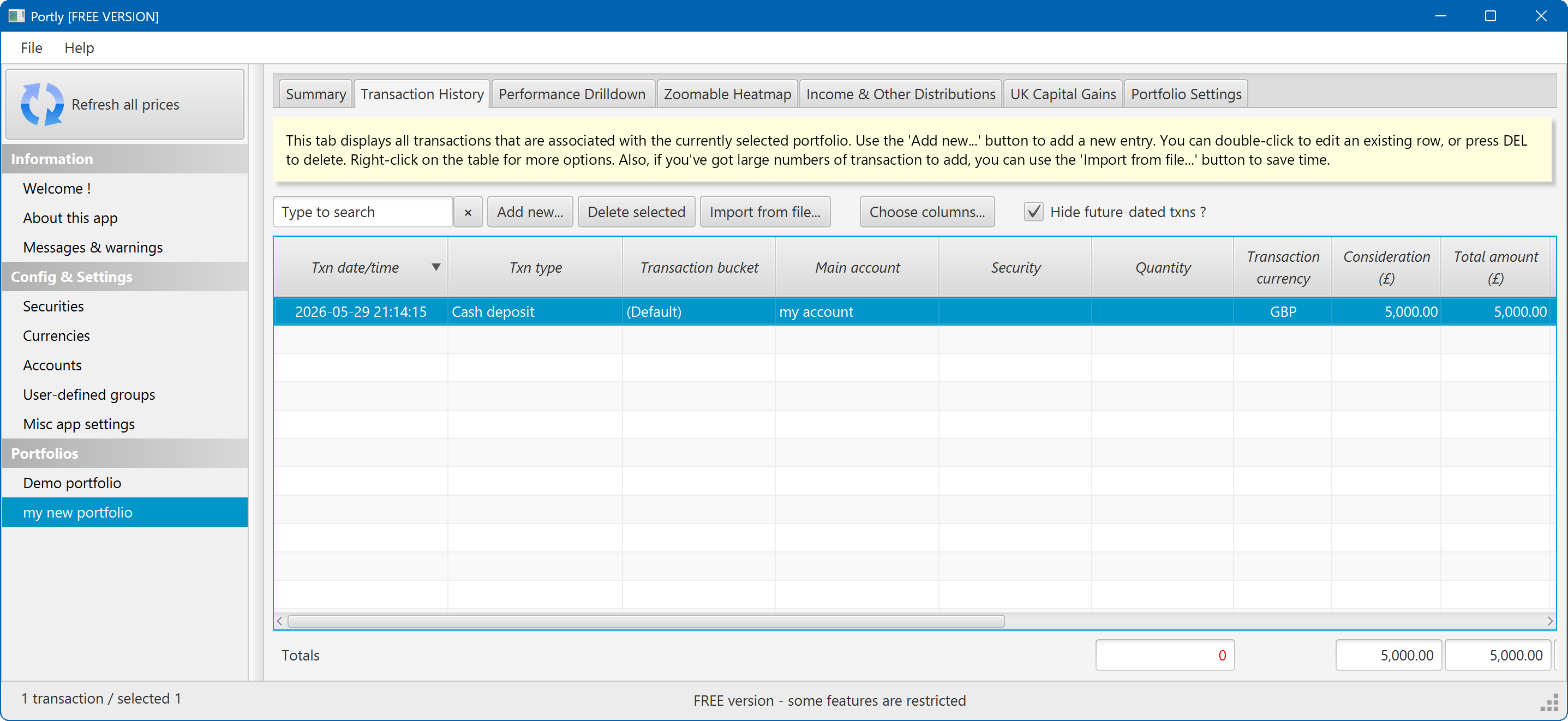
You've successfully created an new account and added some cash to it to fund your security purchases. Now let's move on to the next step...
Step 3 - Buying securities
To keep things simple, we'll start by buying one of the pre-configured securities that are part of the standard Portly installation. Click the Add new... button to add a new transaction, but this time select Buy shares or other securities. You'll see the standard buy/sell dialog :
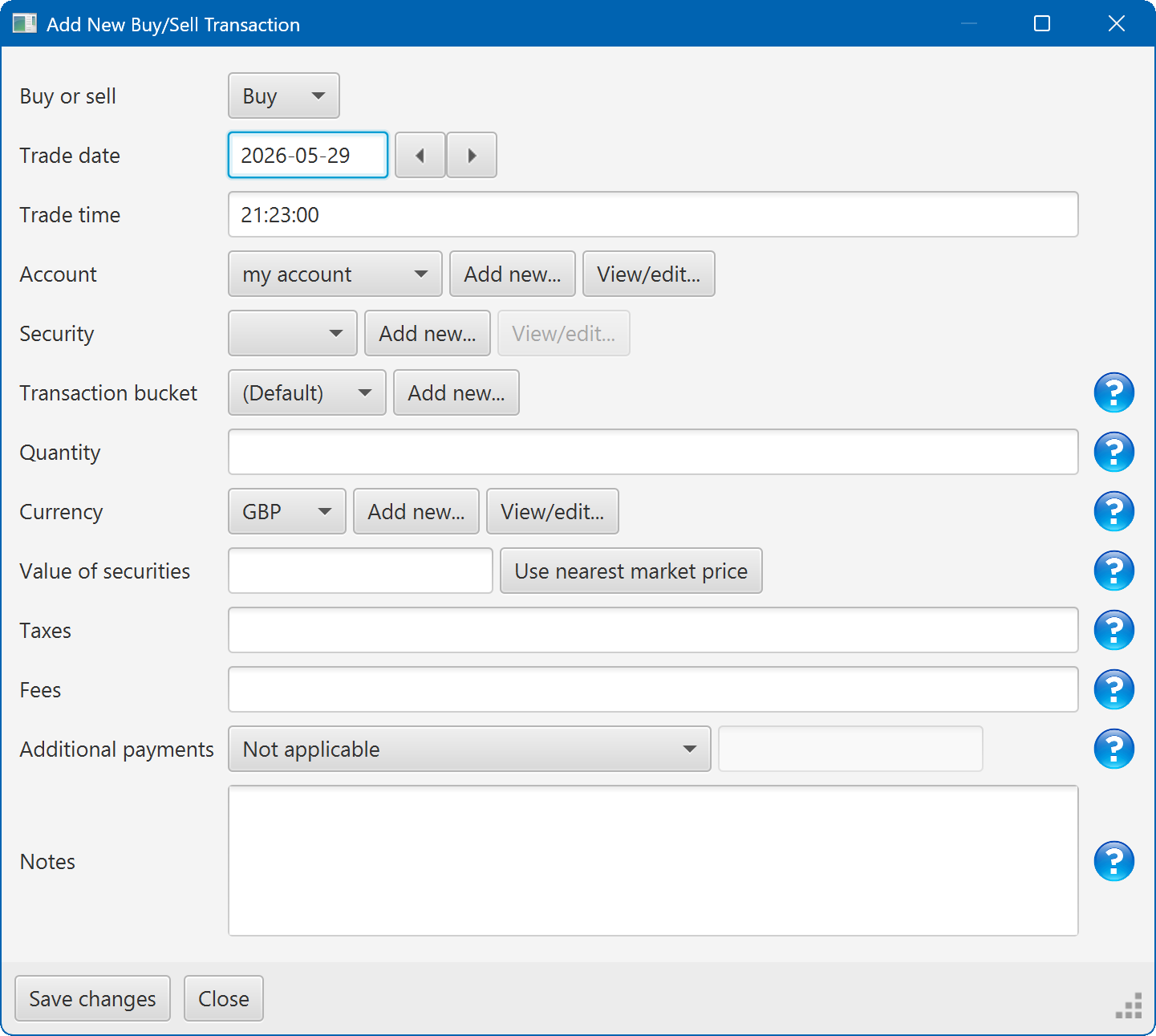
Note that many of the fields have a small blue 'help badge' next to them. Hover the mouse over these badges to see more information about each field.
Fill out the dialog as follows. For this tutorial, we'll buy 40 shares of VRWL (Vanguard FTSE All-World ETF) :
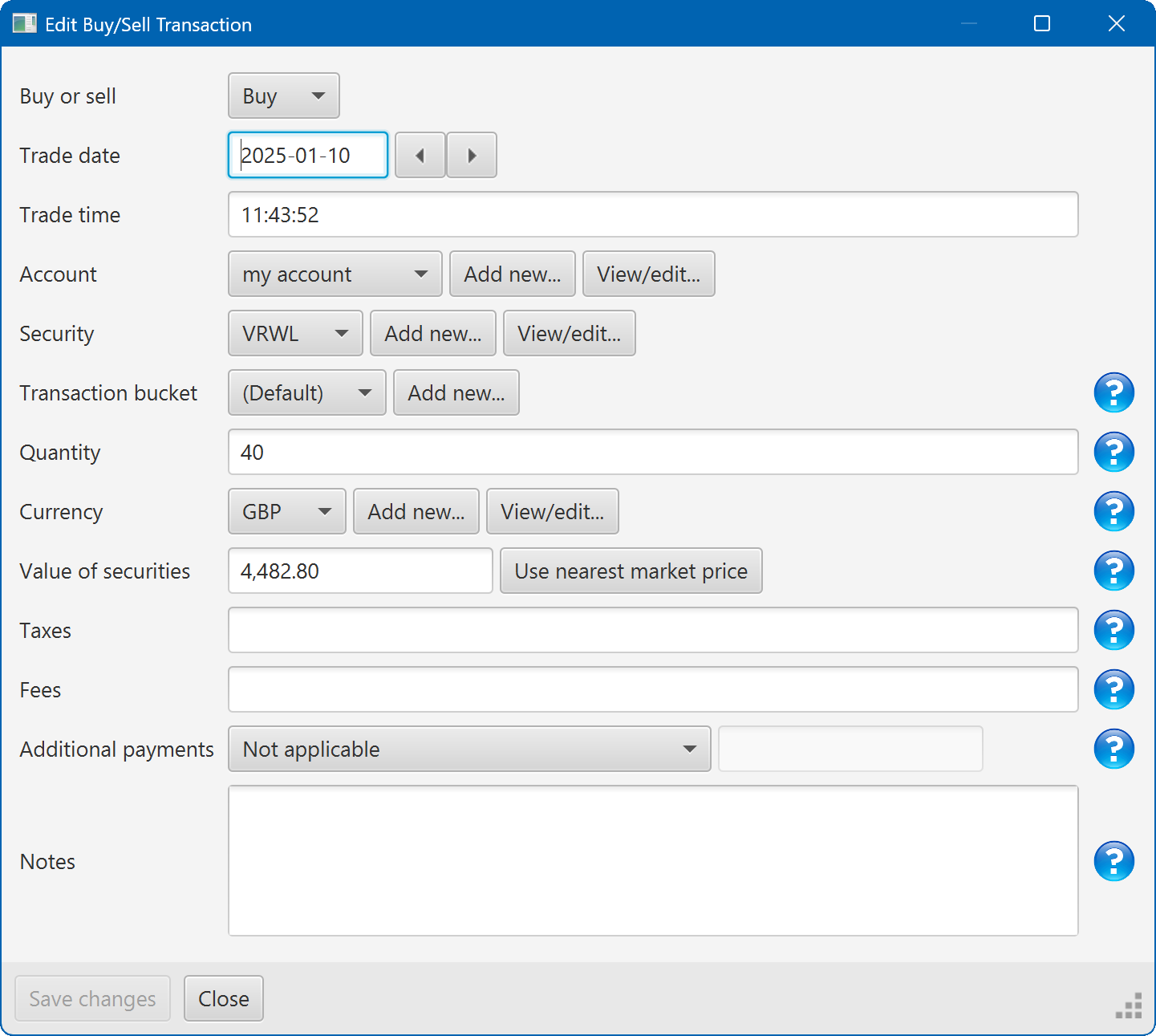
Press Save changes when you're done. The screen should now look something like this :
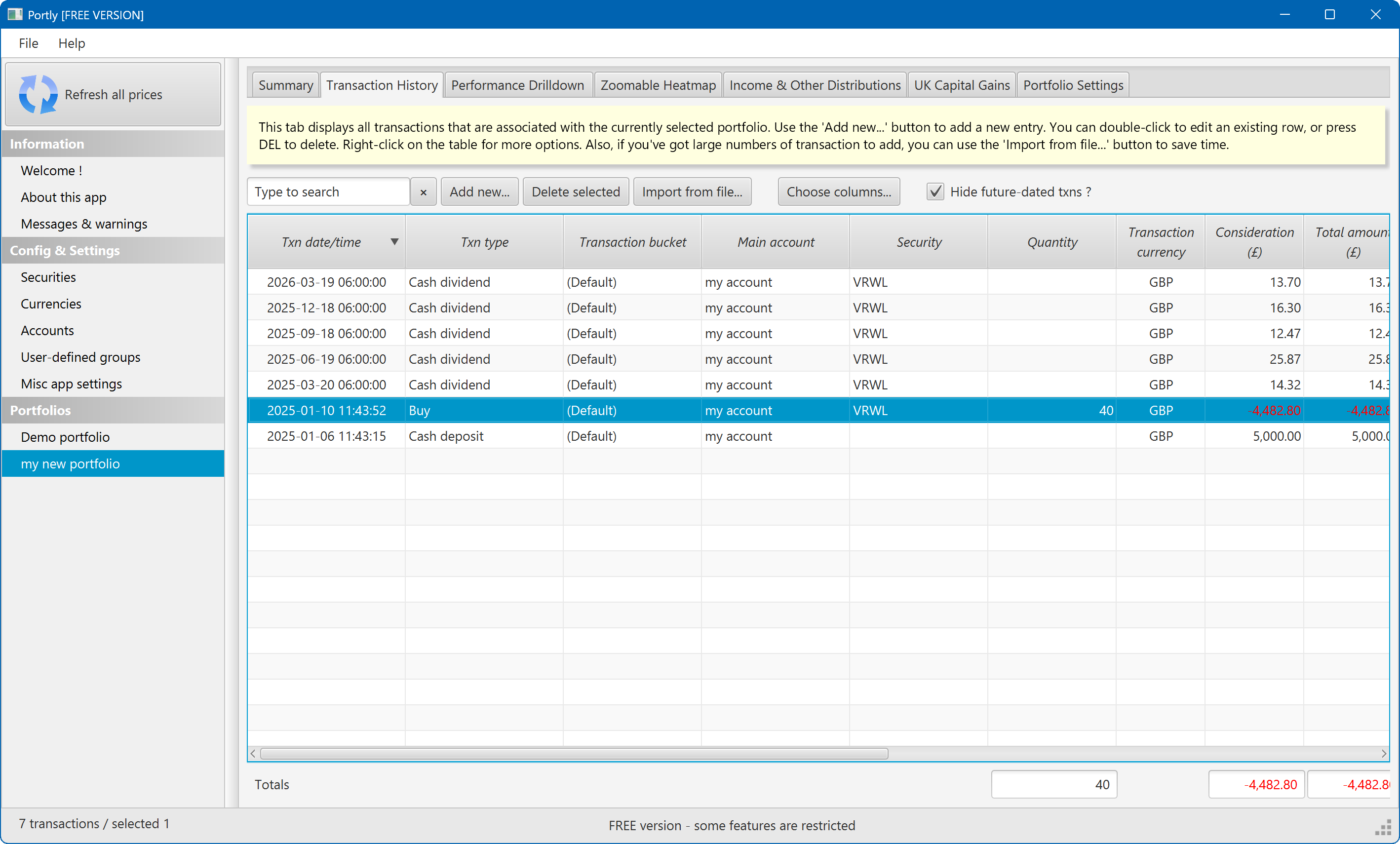
Interesting ! Not only is there a new Buy trade in the transaction history, but Portly has also added a series of dividend transactions, representing cash payments that you have received from the VWRL holding.
Step 3 - Back to the summary screen
Let's conclude the tutorial by heading back to the summary tab and seeing how things have changed. Click on Summary at the top of the screen, and you should see a view that looks something like this :
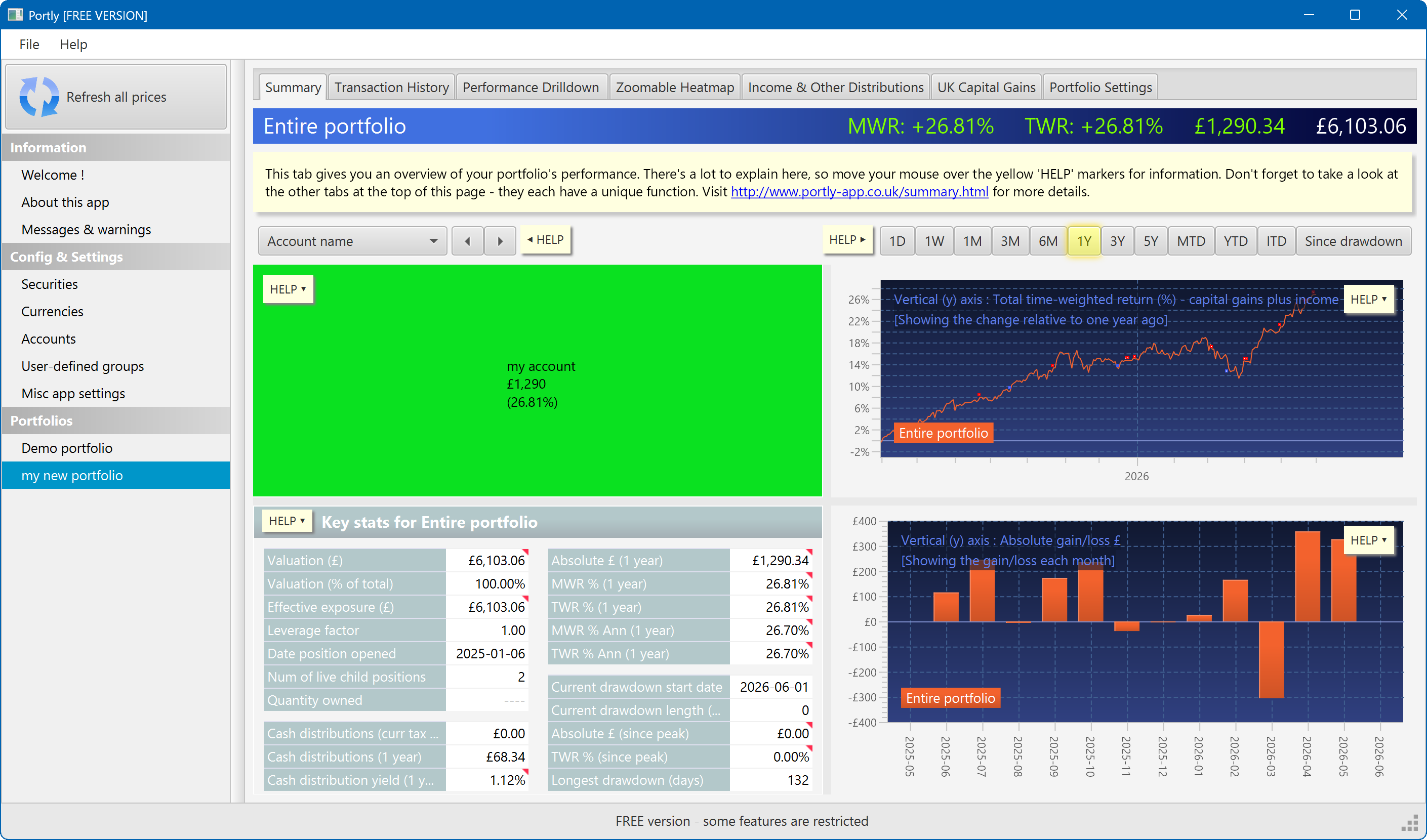
Although the exact figures will vary depending on when exactly you're following this tutorial, the base idea is that the portfolio is now showing some positive growth. The summary screen helps you to visualise and analyse that growth in detail. There's too much to cover in this introductory tutorial, but you can read more here.
Wrapping up
If you followed this tutorial to the end, you've got a new portfolio up and running. You added some cash to your account and then purchased some shares of VWRL. You've had a brief look at some of the analytical capabilities of Portly. But so far, we've only scratched the surface. Look out for the next tutorial (coming soon), in which we'll delve a bit deeper...
In the meantime, these topics might be interesting :
Next tutorials coming soon... please stay tuned
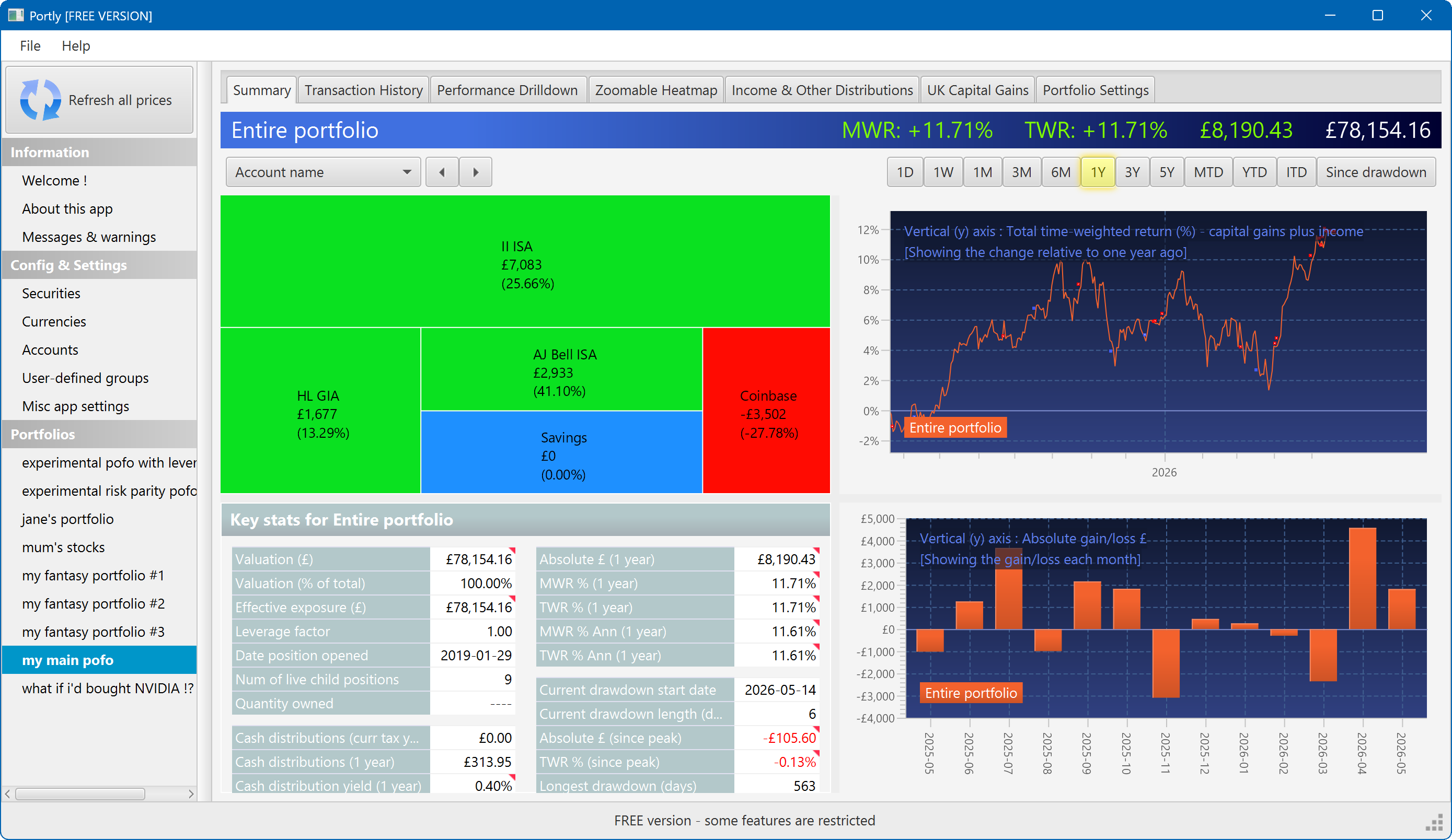
The summary screen gives an at-a-glance overview of your portfolio's performance. To read more about it, click here
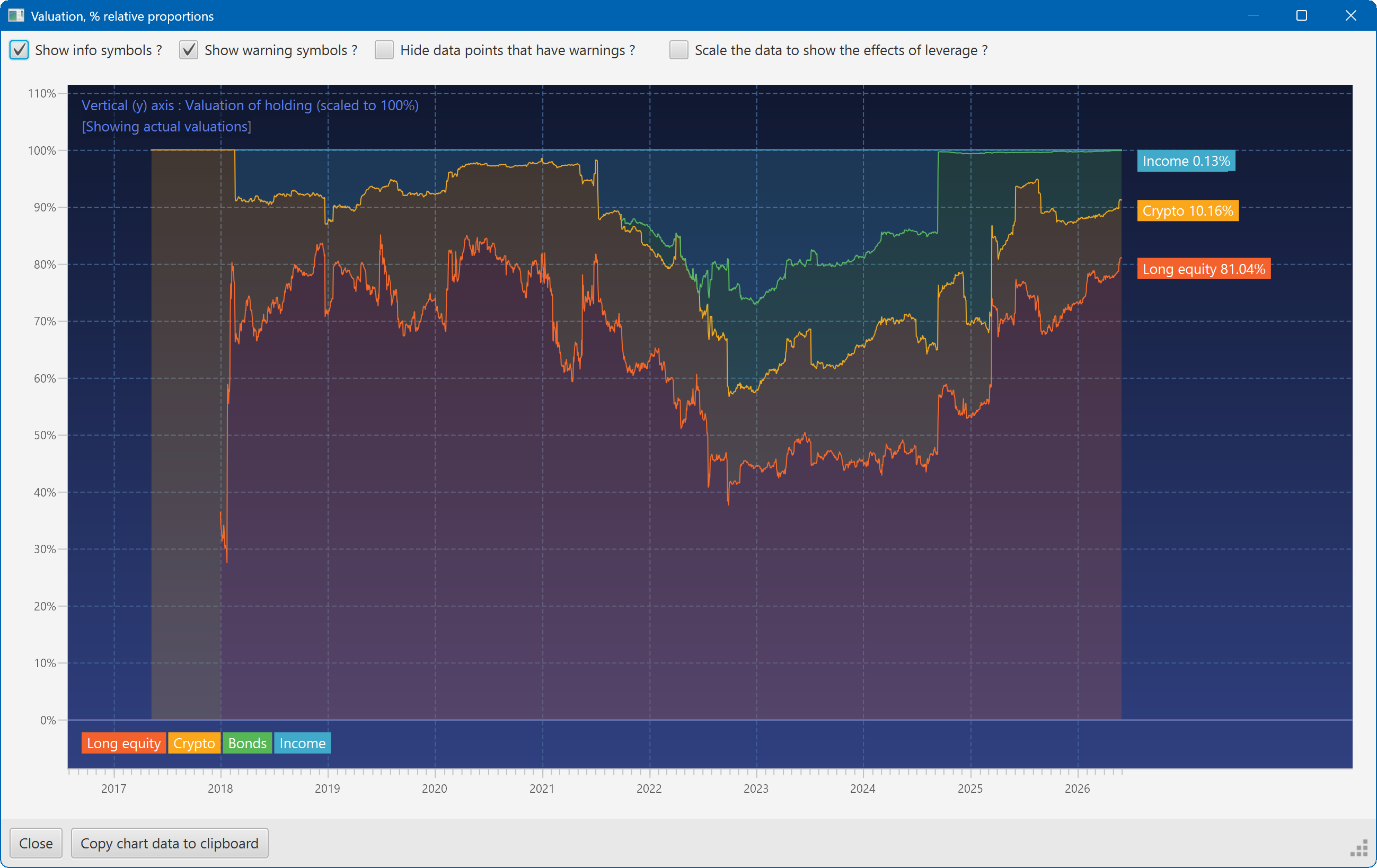
This plot shows the changing composition of a portfolio over time. It uses user-defined groups to organise the assets into different classes.
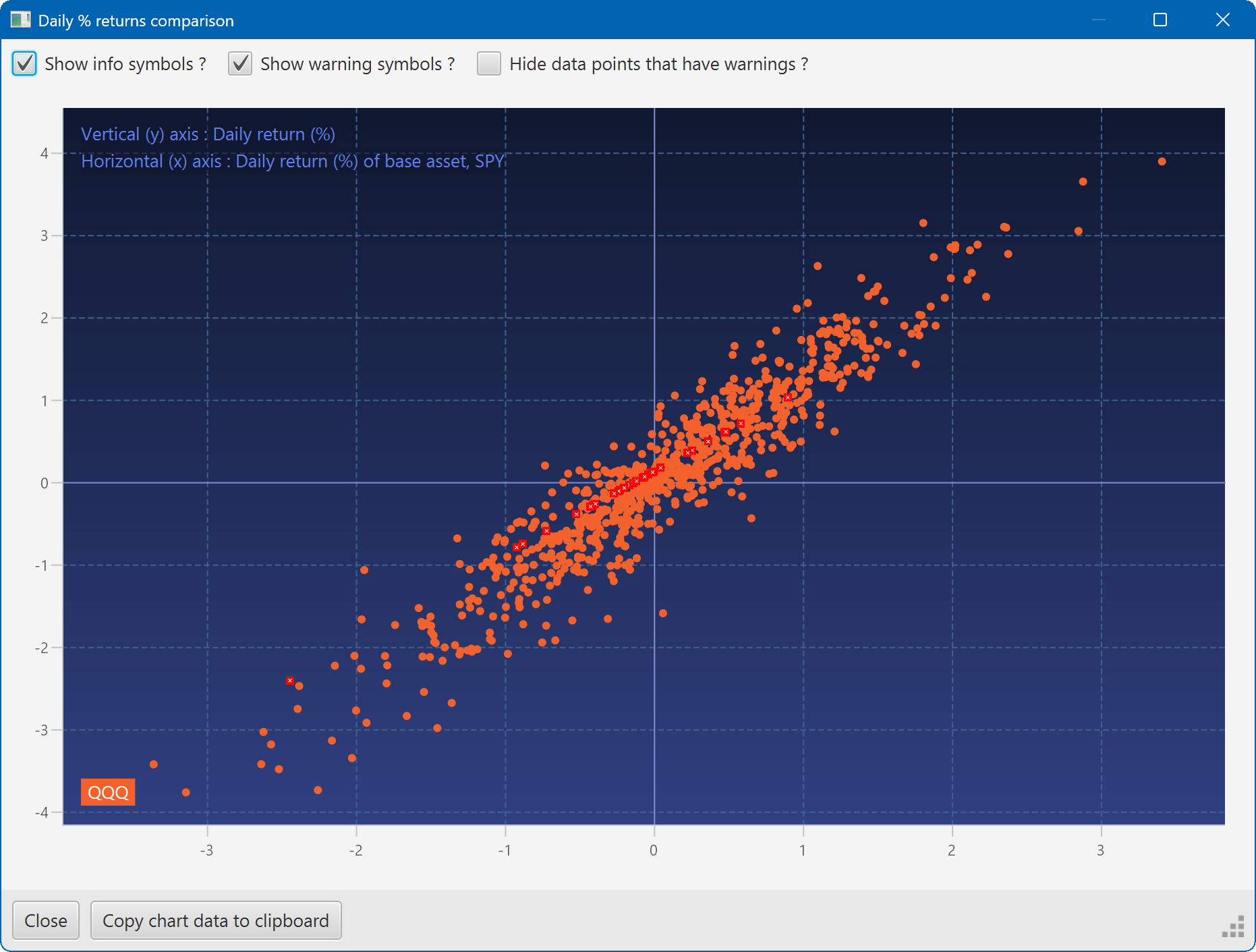
A scatter plot, showing how the daily moves of one security (QQQ) relate to the daily moves of another (SPY)
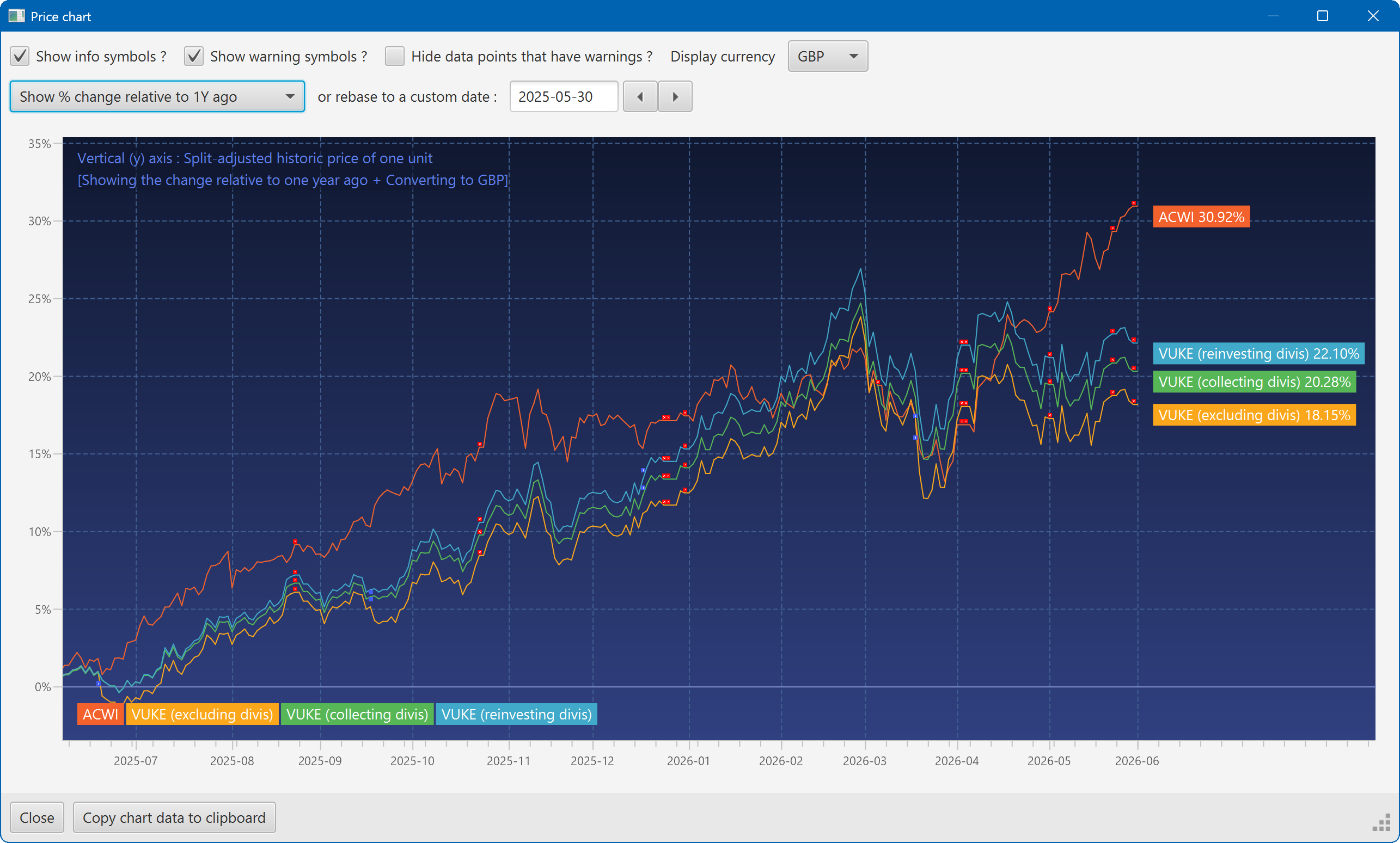
A chart showing the growth of two securities over the past year
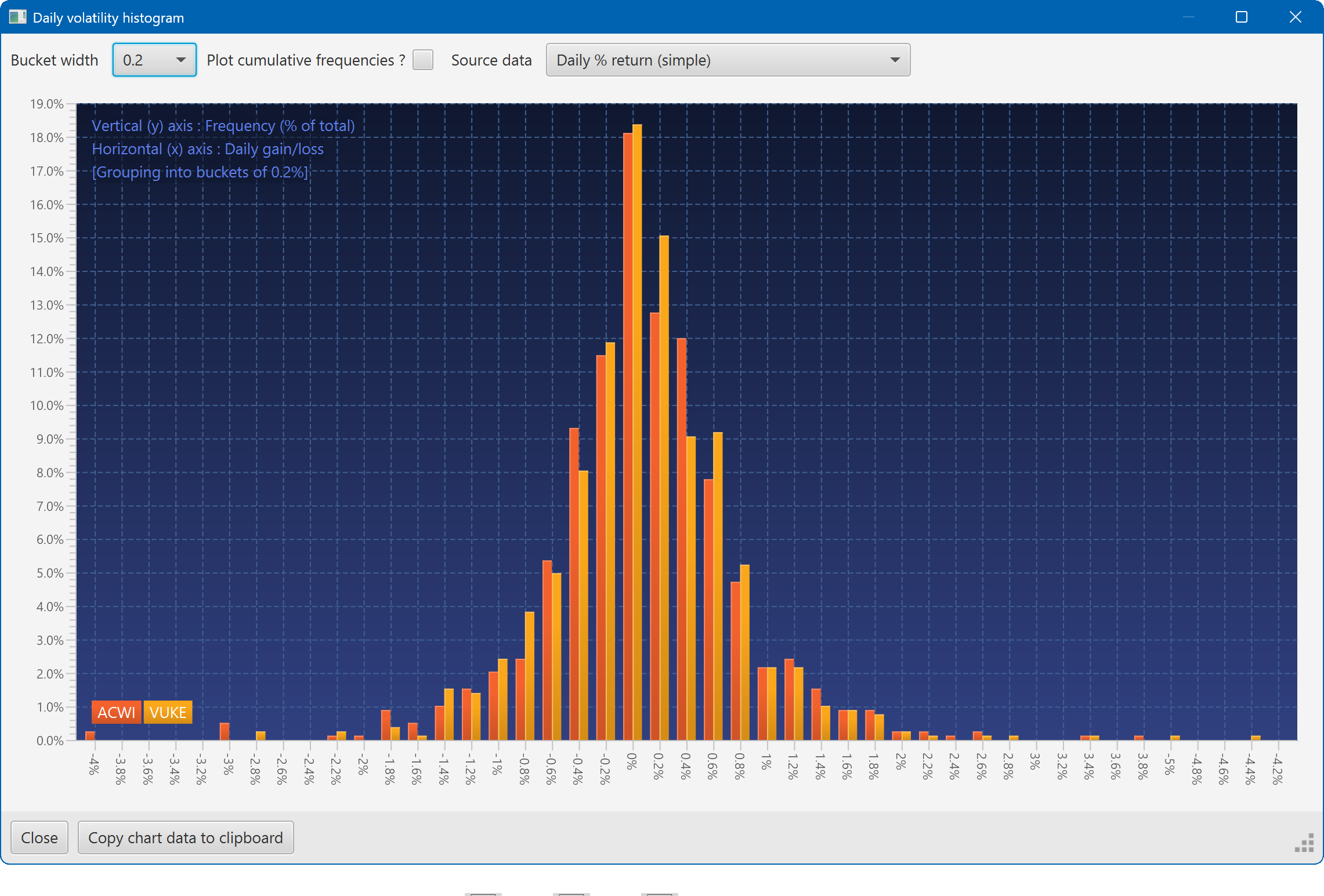
A histogram showing the daily returns of two securities, overlaid
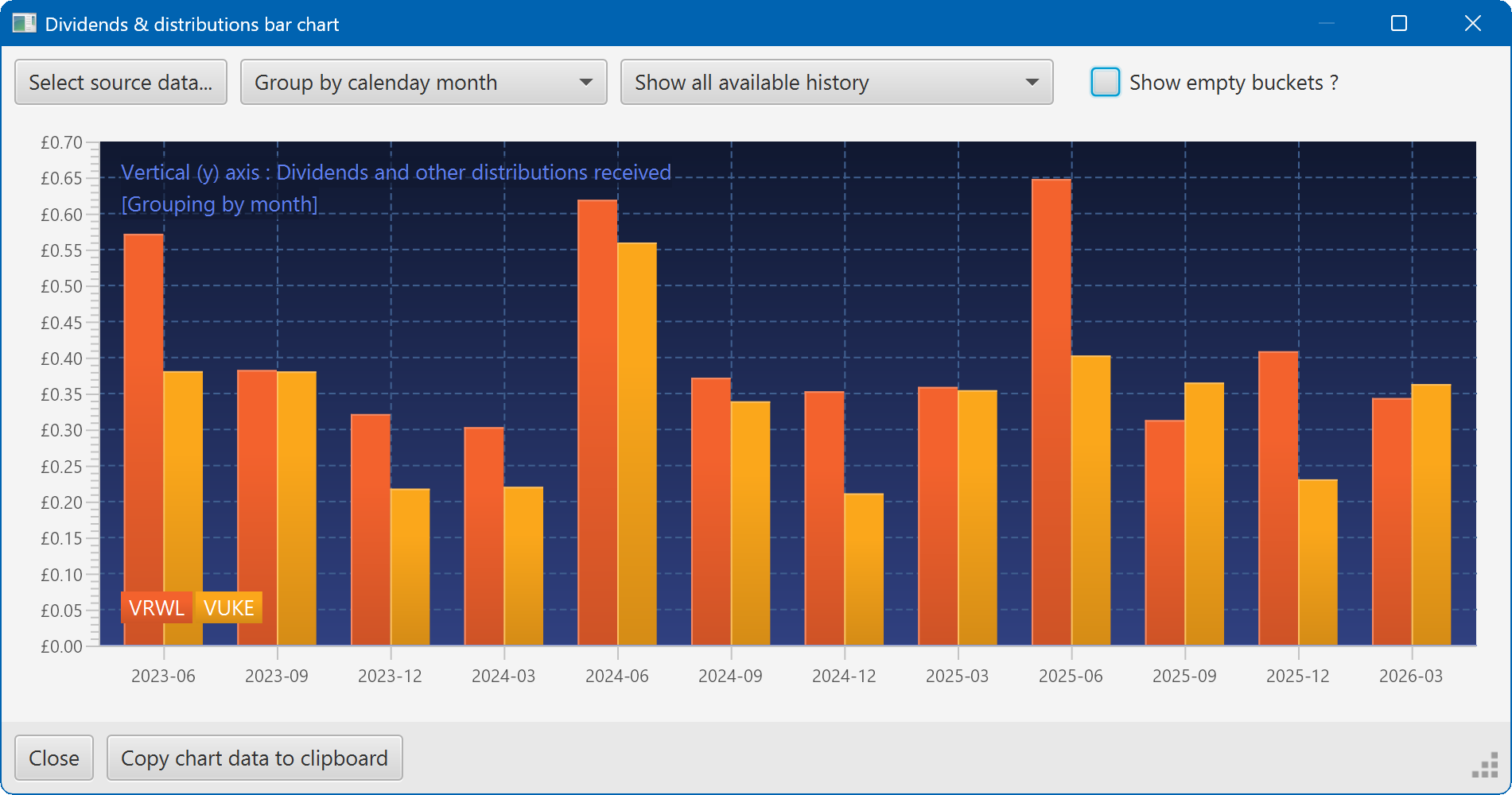
A bar chart showing the dividend history of two securities