
 Multi-currency support
Leveraged ETFs
Cryptocurrencies
UK Gilts
UK CGT reporting
Equalisation payments
List of shortcut keys
Notes on data storage
Multi-currency support
Leveraged ETFs
Cryptocurrencies
UK Gilts
UK CGT reporting
Equalisation payments
List of shortcut keys
Notes on data storage

Portly was hand-written by humans (me, specifically) with minimal AI input. For the moment, at least, I believe that nothing beats good old-fashioned human craftsmanship !

User-defined groups in Portly
Portly enables you to define your own custom groups to organise and analyse your portfolio in exactly the way you want.
Custom groups can be applied in three distinct places :
- Security level groups are useful if you want to capture some information that's intrinsic to each security (e.g. its industry, country, base currency etc). Personally, I use this to record the geographic exposure of each security (US/Asia/Euro etc)
- Transaction level groups enables you to assign a 'purpose' to each transaction. For example, you might wish to divide your transactions into long-term and short-term buckets (enabling you to separate more speculative trades from everything else).
- Account level groups are occasionally useful if you have multiple accounts and wish to aggregate them for simplicity. This is perhaps the least useful type, but it's there if you need it.
There's sometimes a bit of overlap between these 3 types. If you wanted to easily separate your Fun and Core investments, for example, one way to achieve that would be to use a security-level group to mark each security as fun or core. Alternatively, you might choose to set up a dedicated account to hold your Fun trades, and then use account-level groupings to aggregate everything at the end. Or you might choose to do as I do, and use transaction-level groups to mark each transaction with its intended purpose. All three methods achieve the same basic aim in slightly different ways.
Editing custom groups
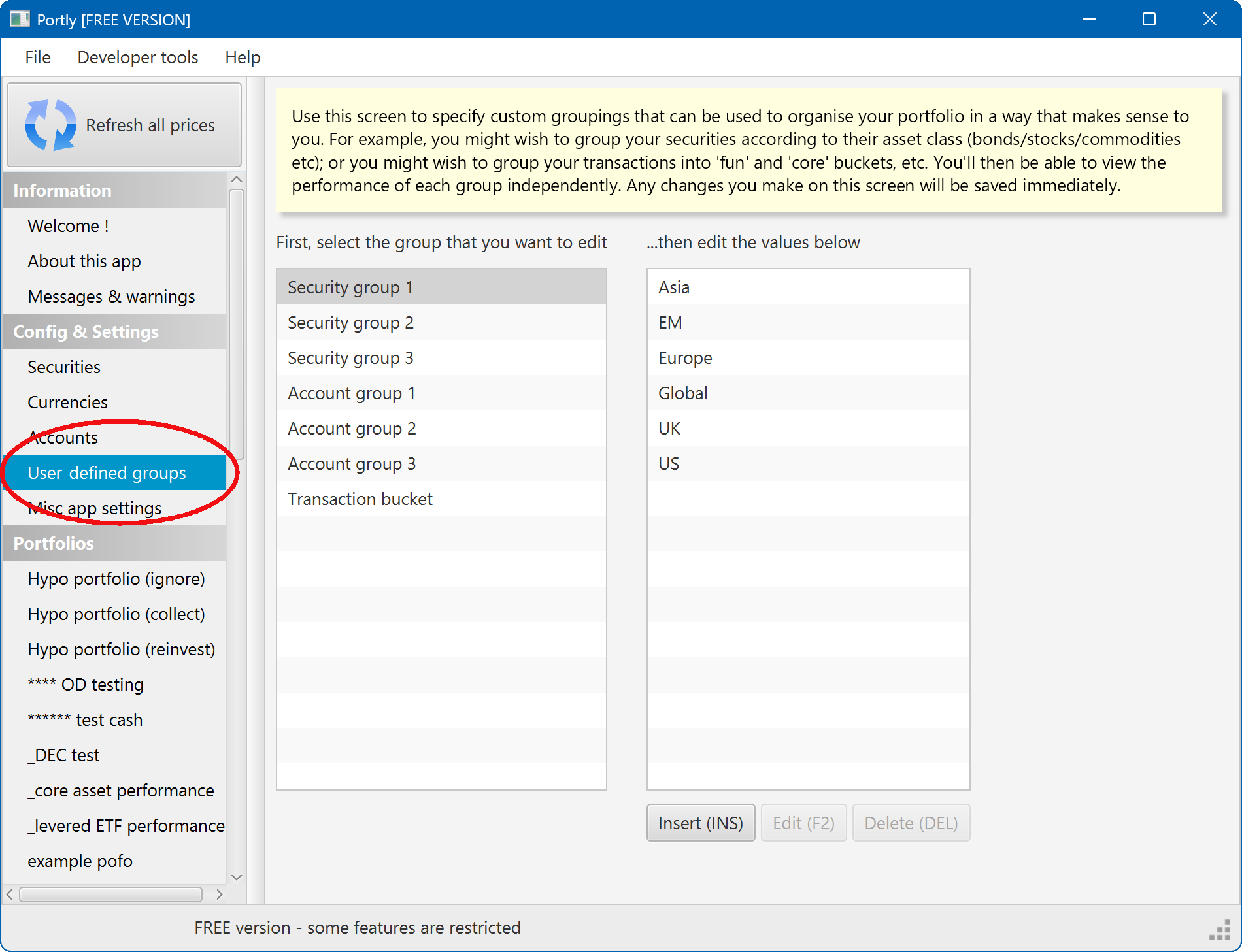
Setting up custom groups is simple. First, navigate to the user-defined groups tab :
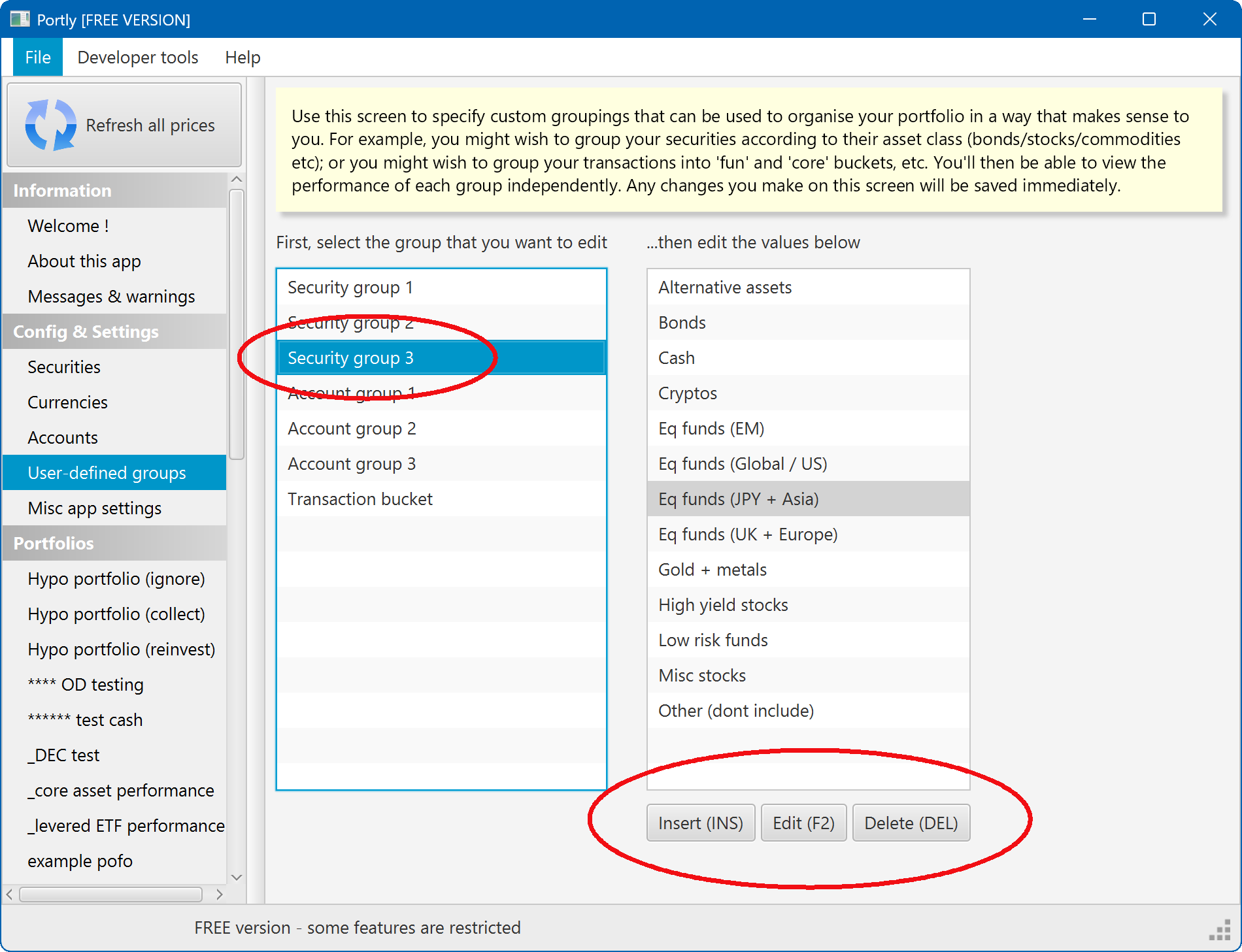
Select the name of the group you wish to edit in the left-hand panel, and then use the INS/DEL keys (or onscreen buttons) to add and remove items in the right-hand panel. You can edit using the F2 key. Changes are saved automatically, they'll be immediately visible on other screens :
Assigning the custom groups
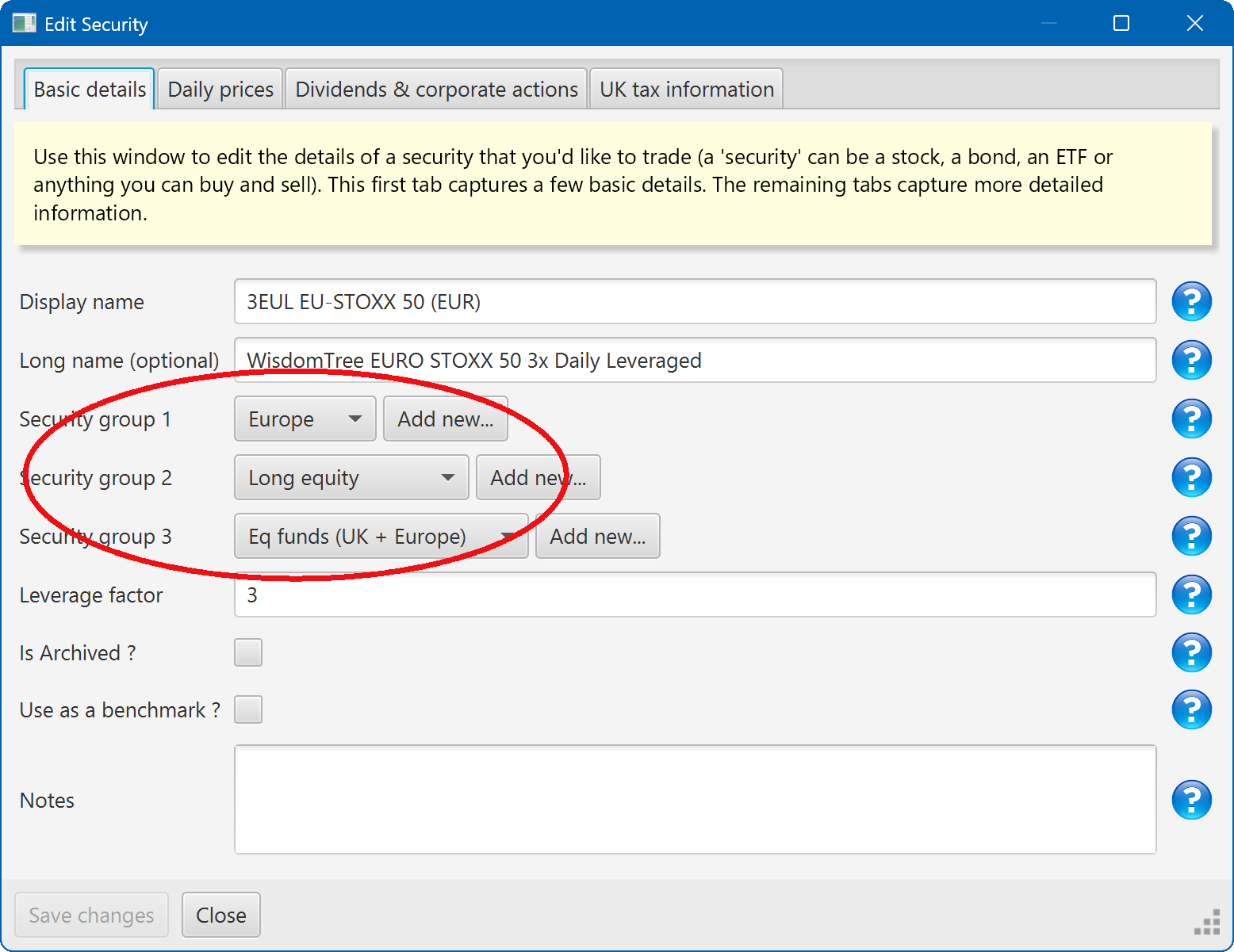
Once you've set up your groups, assigning them is simply. You can do it directly from the security/account/transaction dialogs :
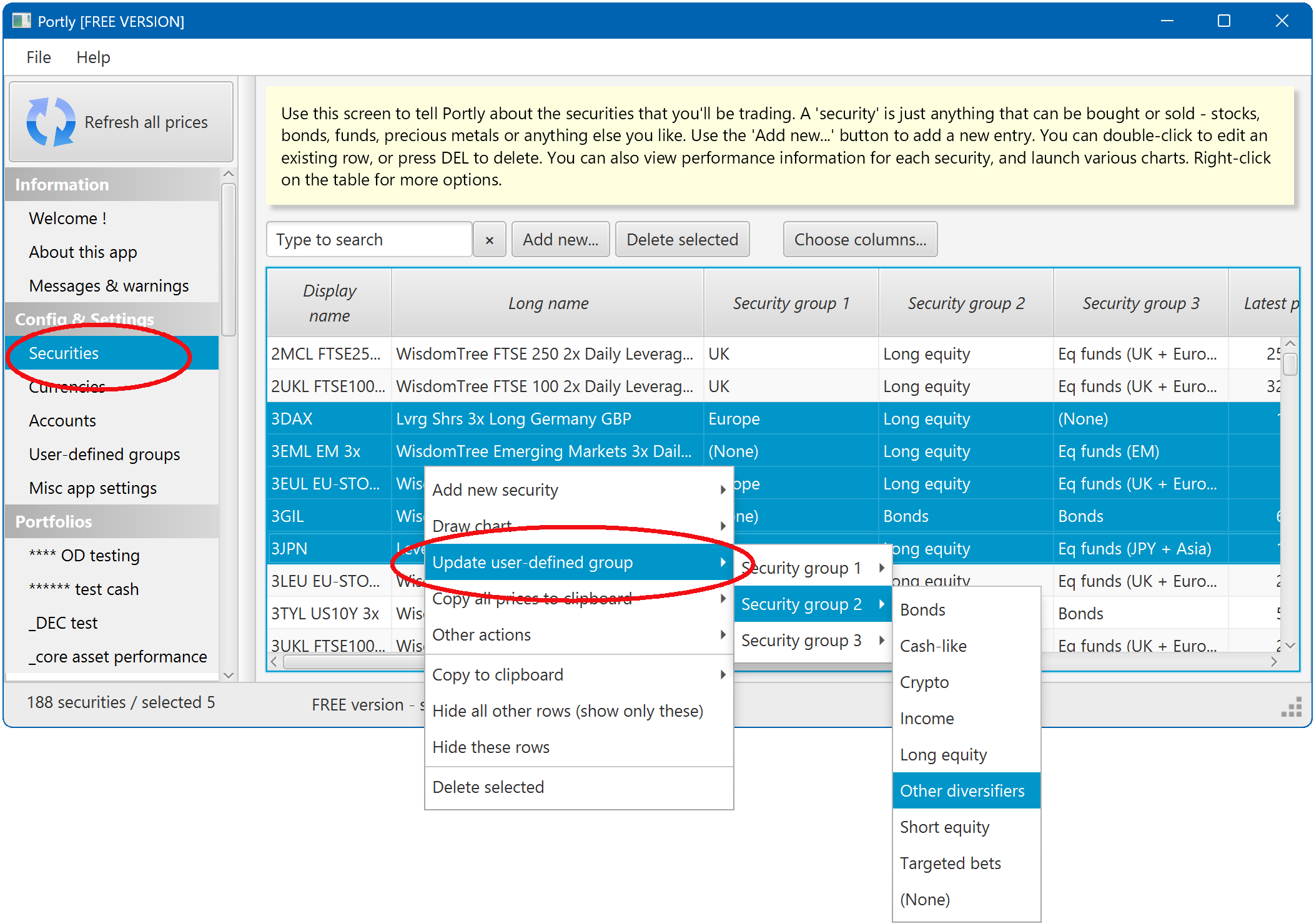
It's also possible to bulk-update many rows at once. On the security browser, for example :
Analysing performance using your custom groups
Having created and assigned your groups, they'll automatically be visible on all the major tabs when you view your portfolio - including the summary tab, the drilldown report and the income report. Please check those pages for more info.
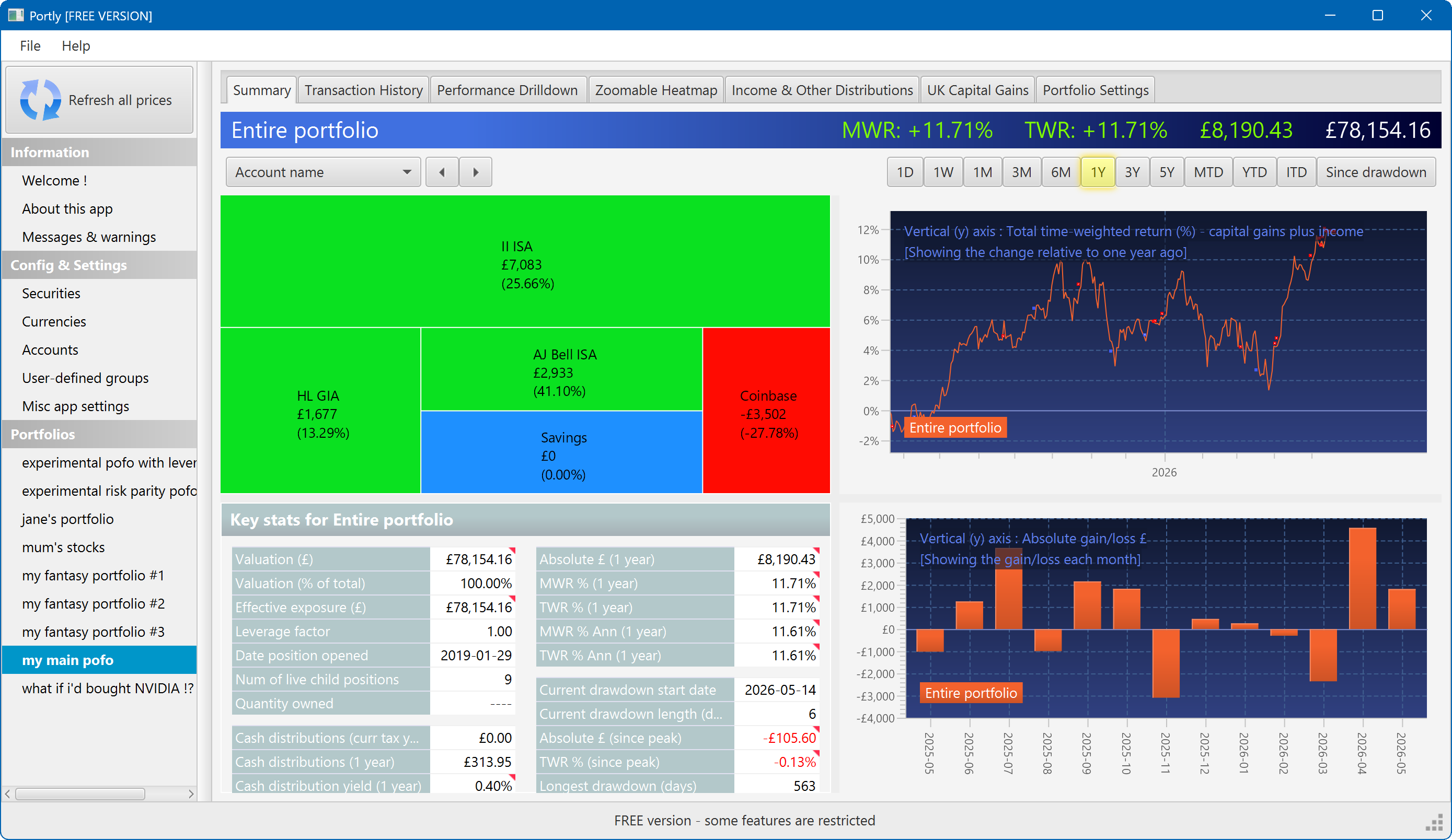
The summary screen gives an at-a-glance overview of your portfolio's performance. To read more about it, click here
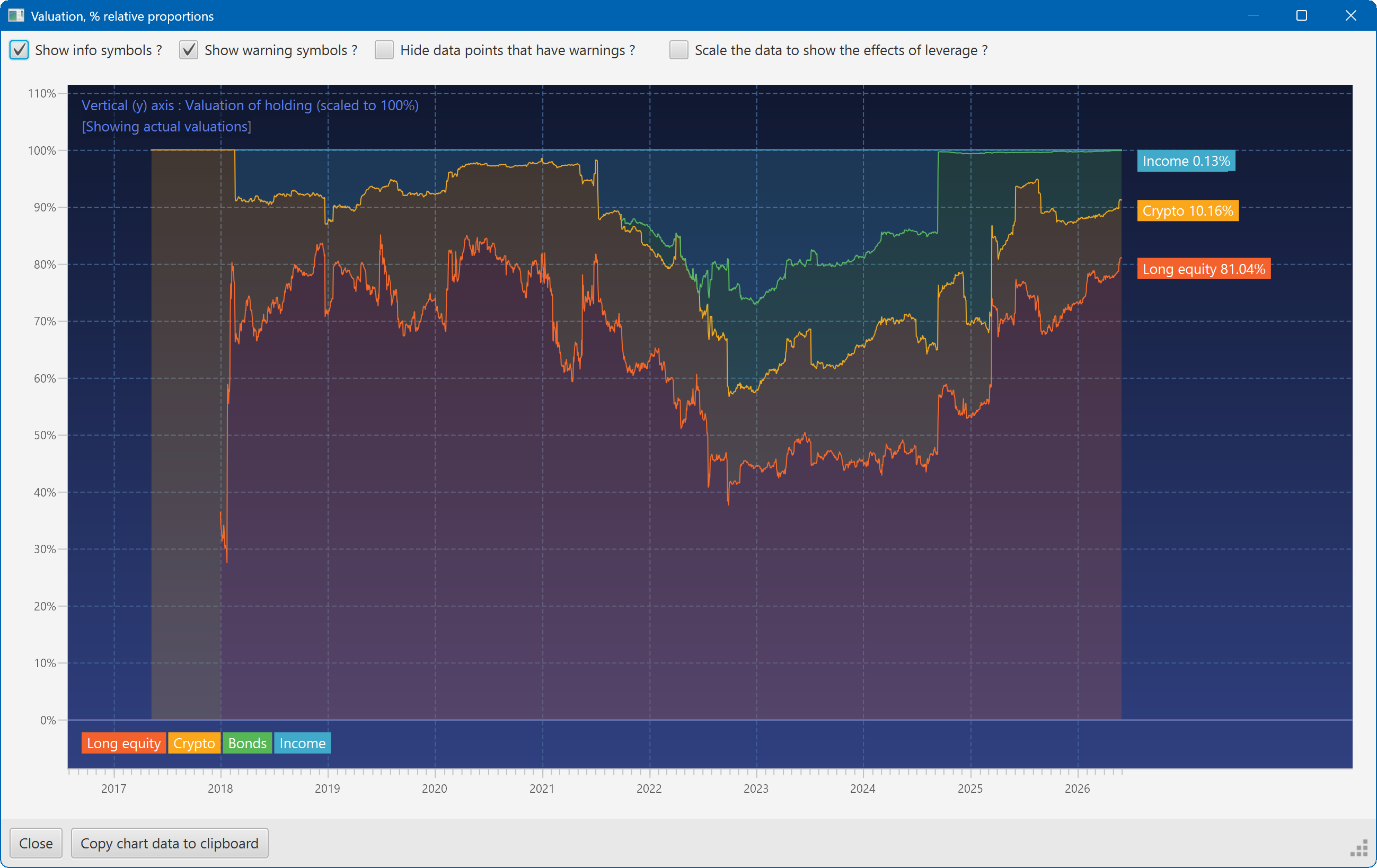
This plot shows the changing composition of a portfolio over time. It uses user-defined groups to organise the assets into different classes.
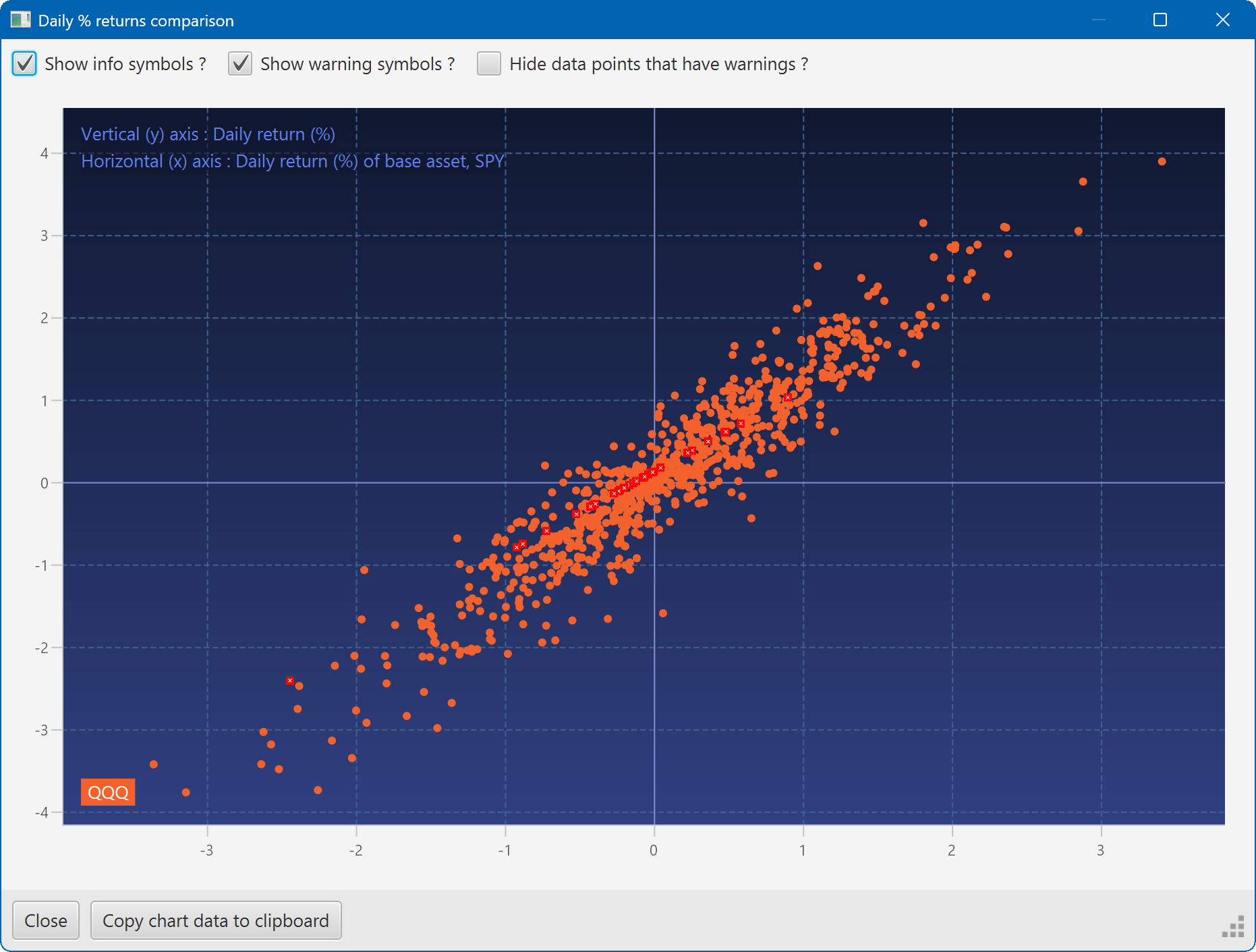
A scatter plot, showing how the daily moves of one security (QQQ) relate to the daily moves of another (SPY)
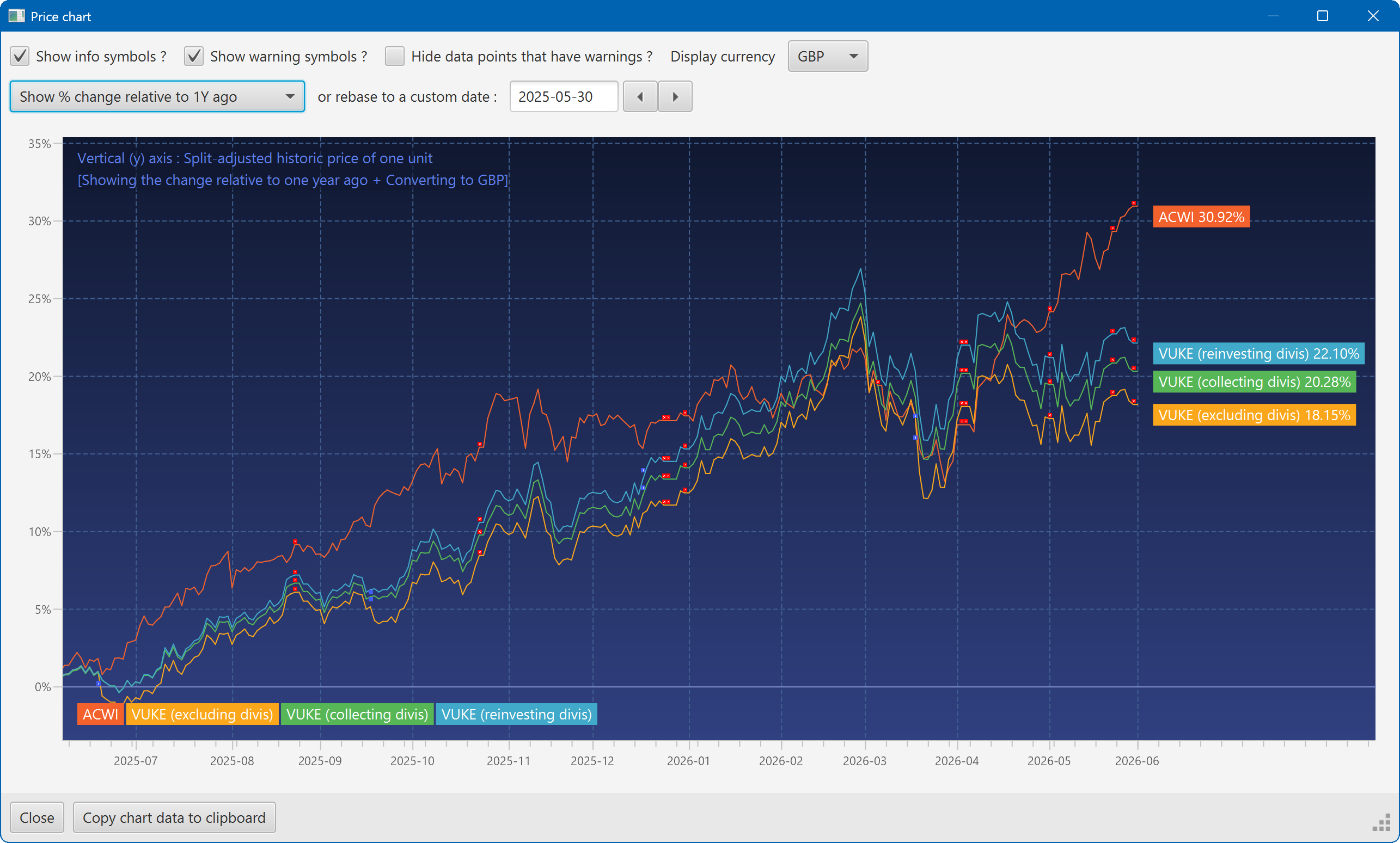
A chart showing the growth of two securities over the past year
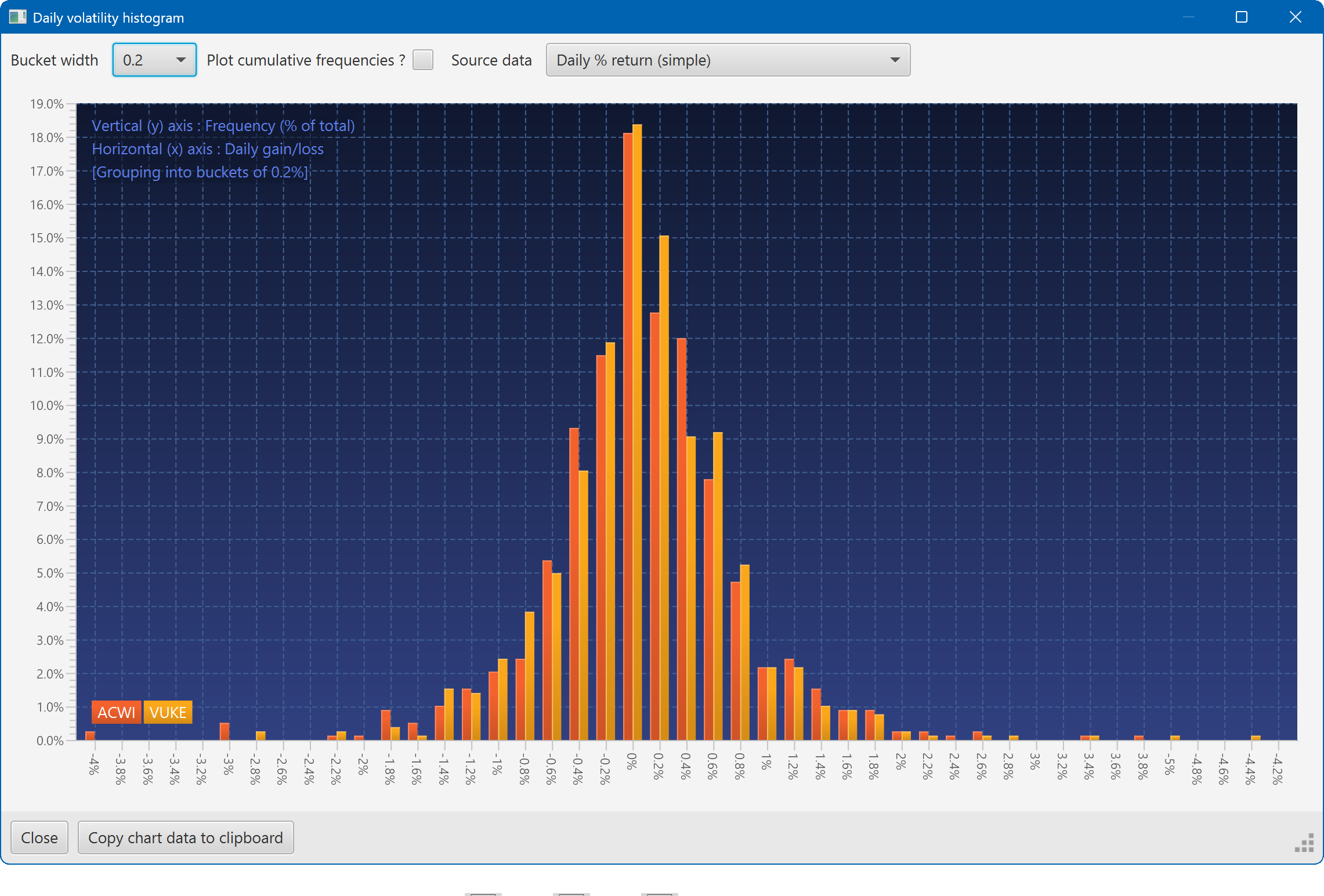
A histogram showing the daily returns of two securities, overlaid
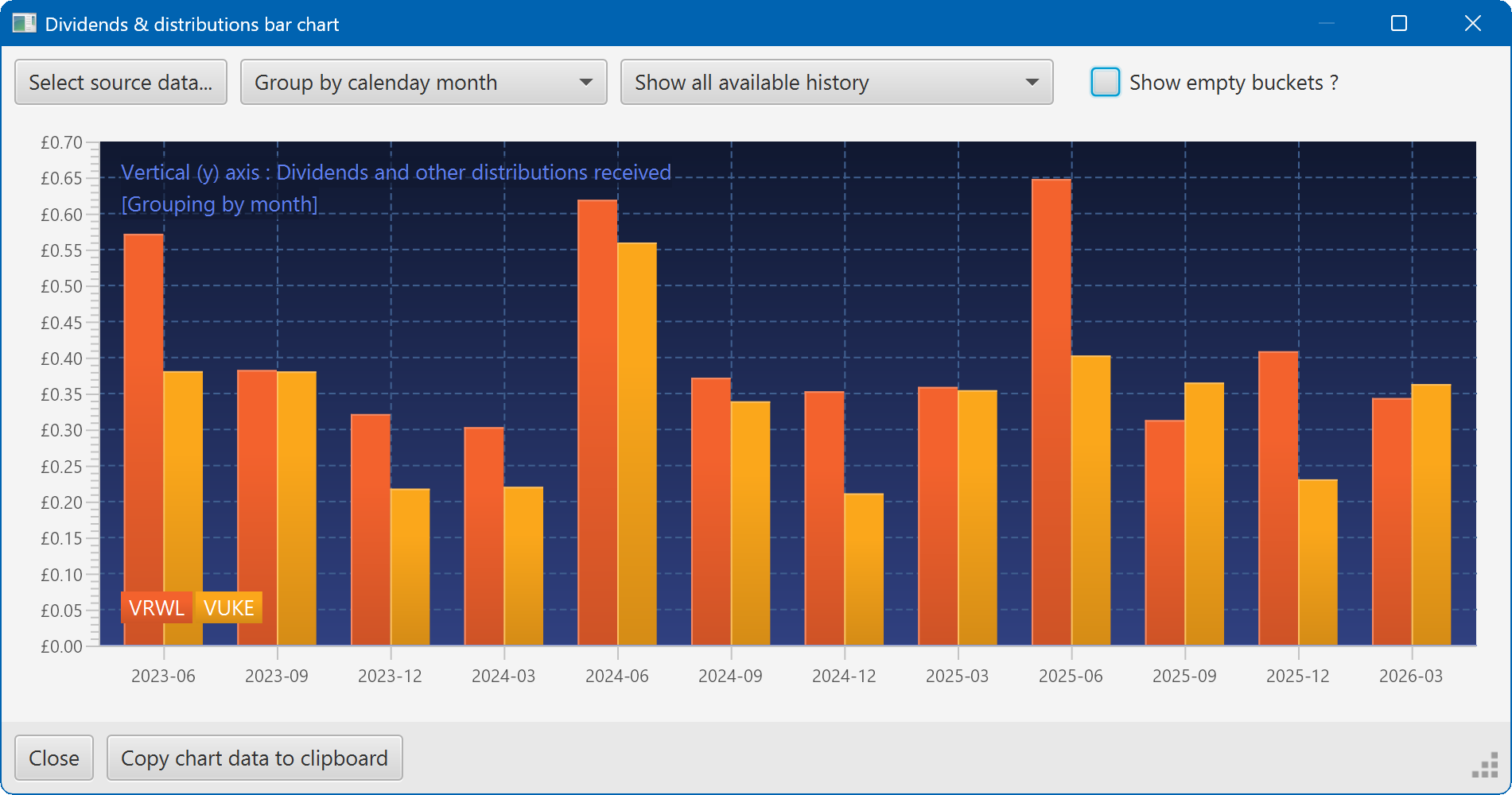
A bar chart showing the dividend history of two securities